- Joined
- Aug 15, 2018
- Messages
- 159
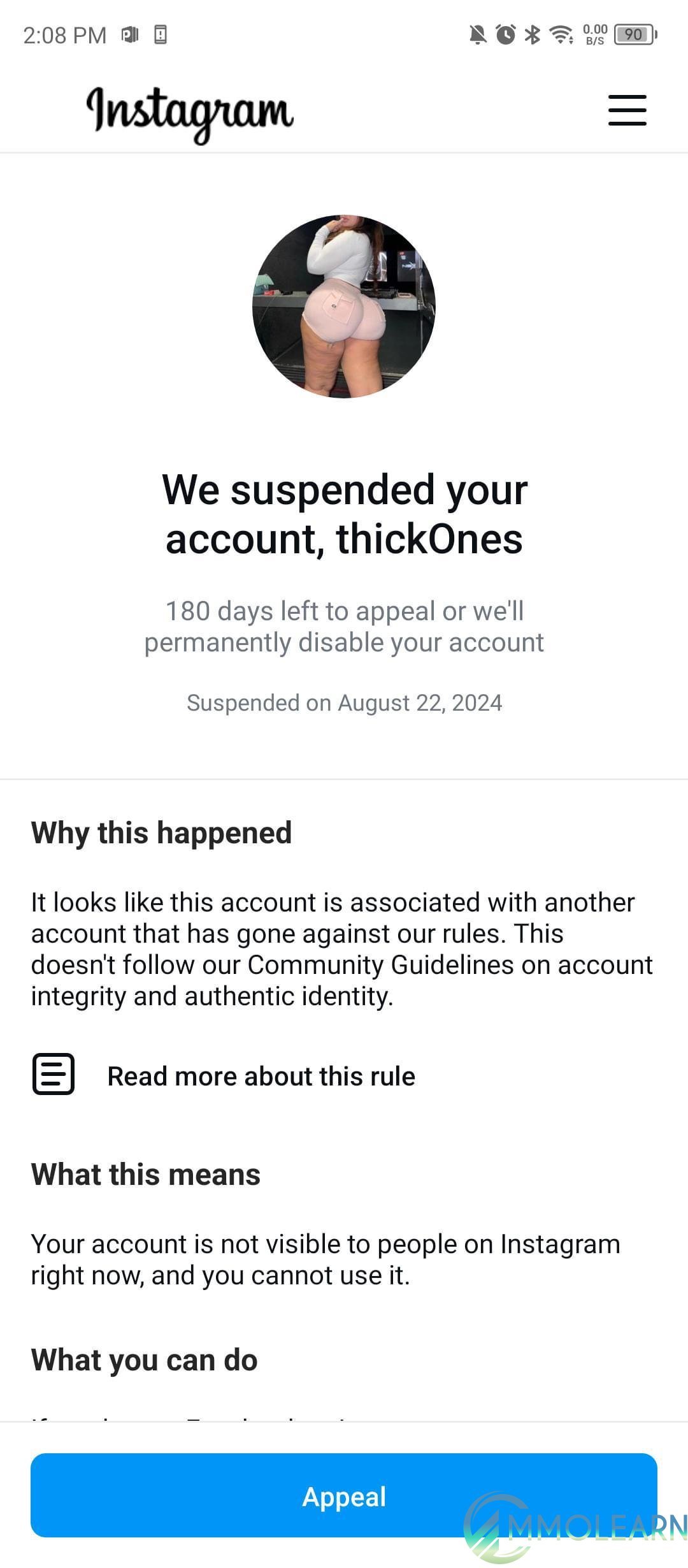
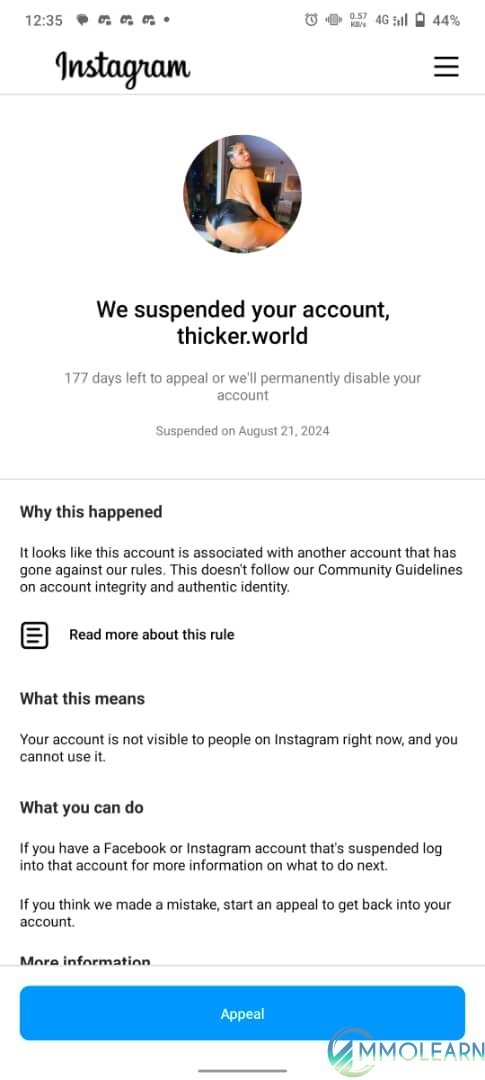
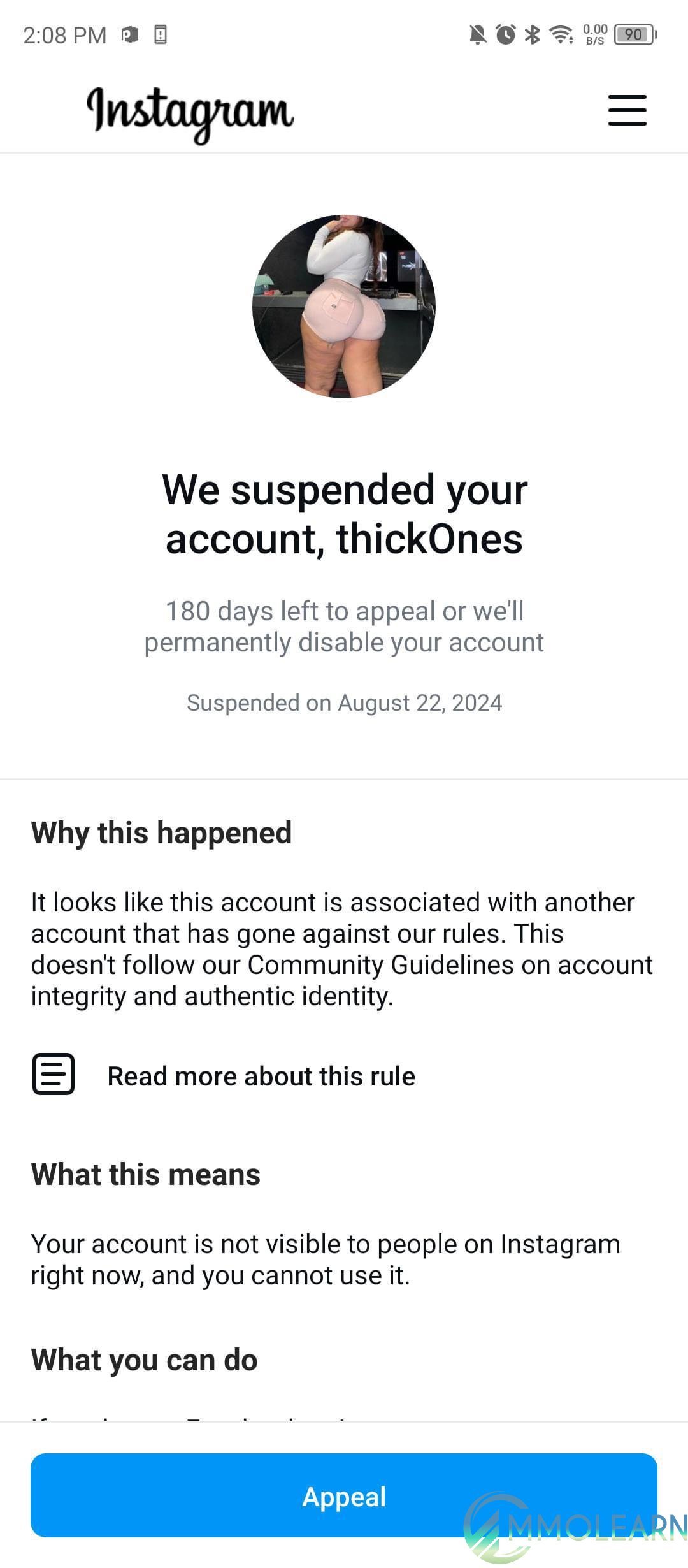
Lately, many Instagram accounts have been getting removed, especially pages that share model and glamour photos. In the last few days, I was able to help restore over 22 accounts. I’m posting this free guide so others can use it and hopefully get their accounts back too.
What causes an Instagram account to get suspended?
Sometimes Instagram may limit or suspend an account if it thinks unusual tools are being used. This can happen when people connect outside apps, auto-posting tools, proxies, or other services that affect account activity.
How to try getting your account back:
Step 1: Install the newest Instagram update
Make sure your Instagram app is fully updated. Older versions may not show all the recovery options correctly.
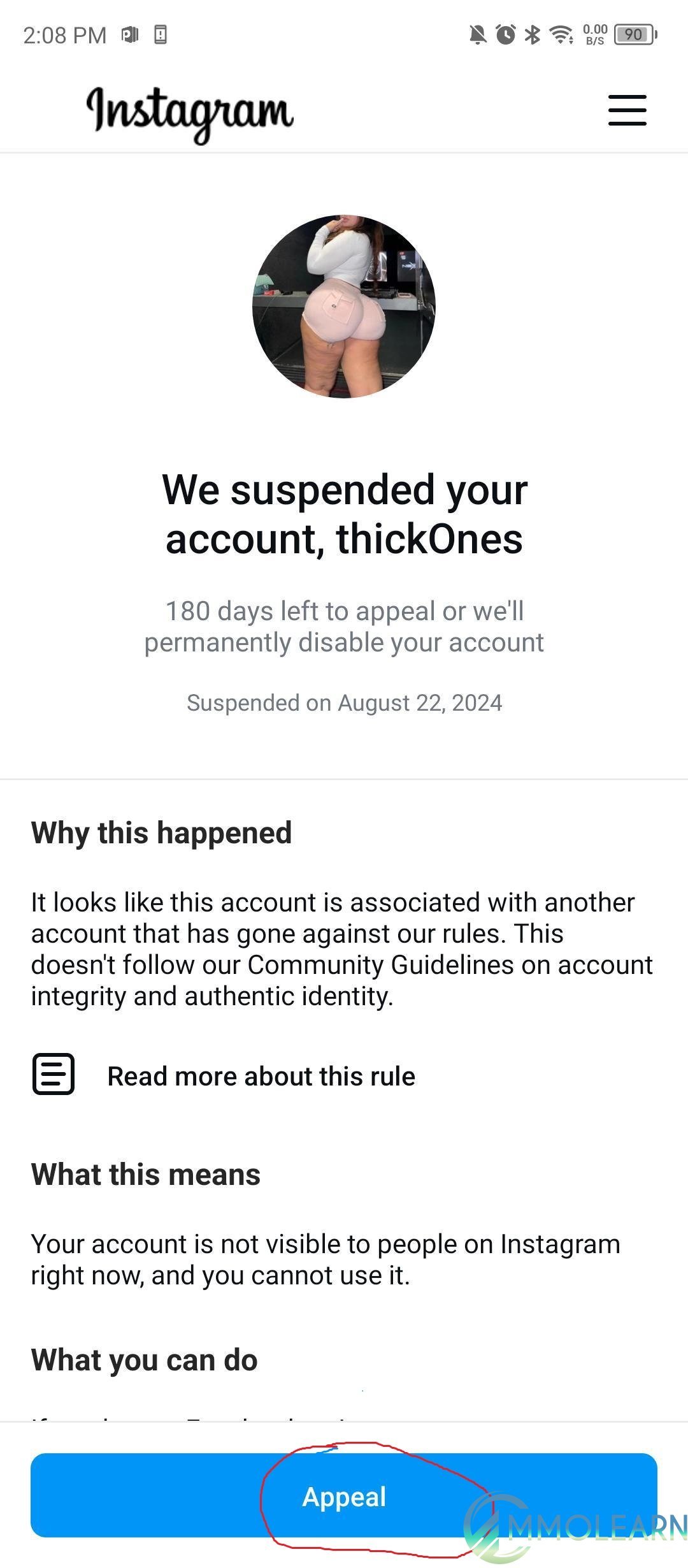
Step 2: Select "Submit Appeal"
Press the appeal option on the screen and follow the instructions to send your request for review.
Step 3: Verify Your Email
Type in your email address and confirm it. In many cases, this can work even if the email is different from the one originally connected to the account.
Step 4: Verify Your Mobile Number
Choose your region, enter your phone number, and complete the confirmation. This process is much like the email check.
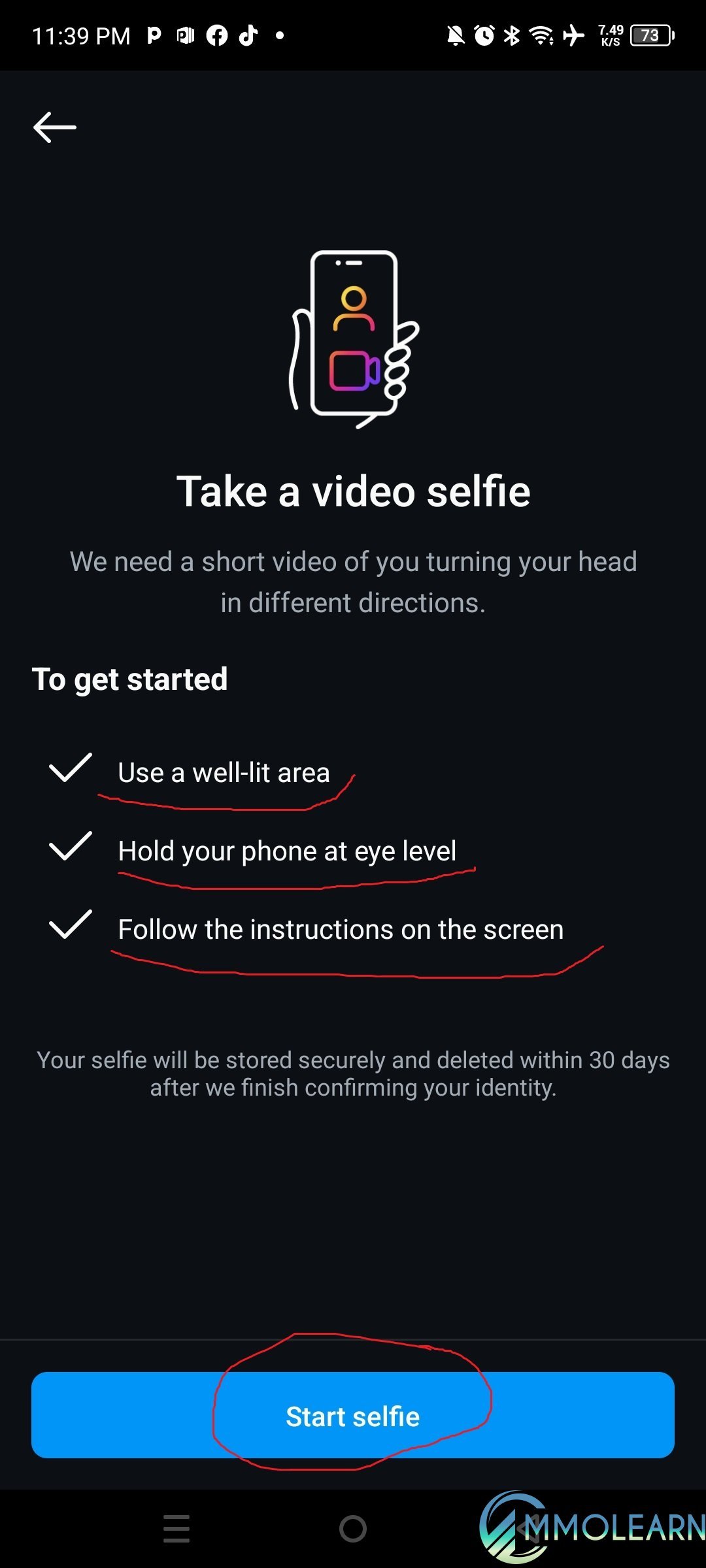
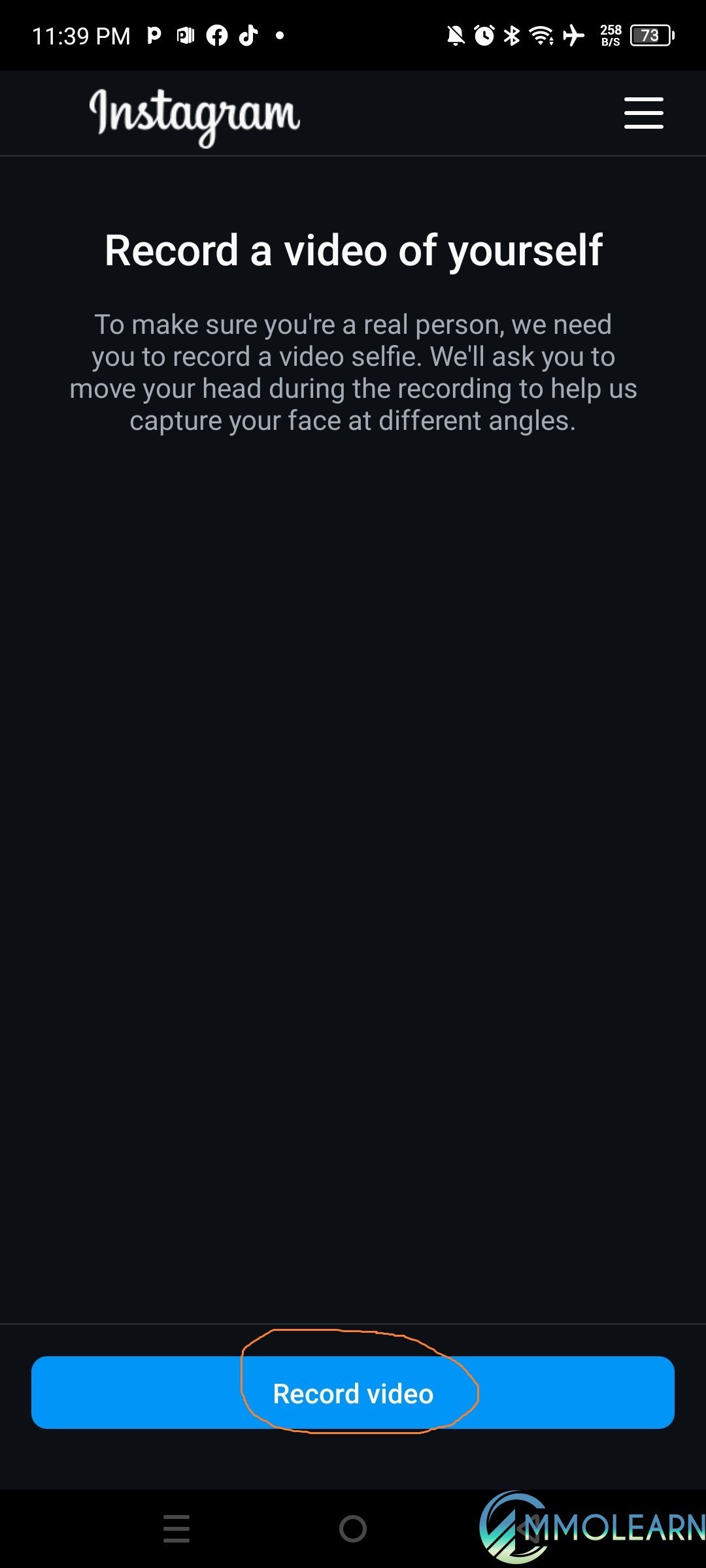
Step 5: Complete a Face Check
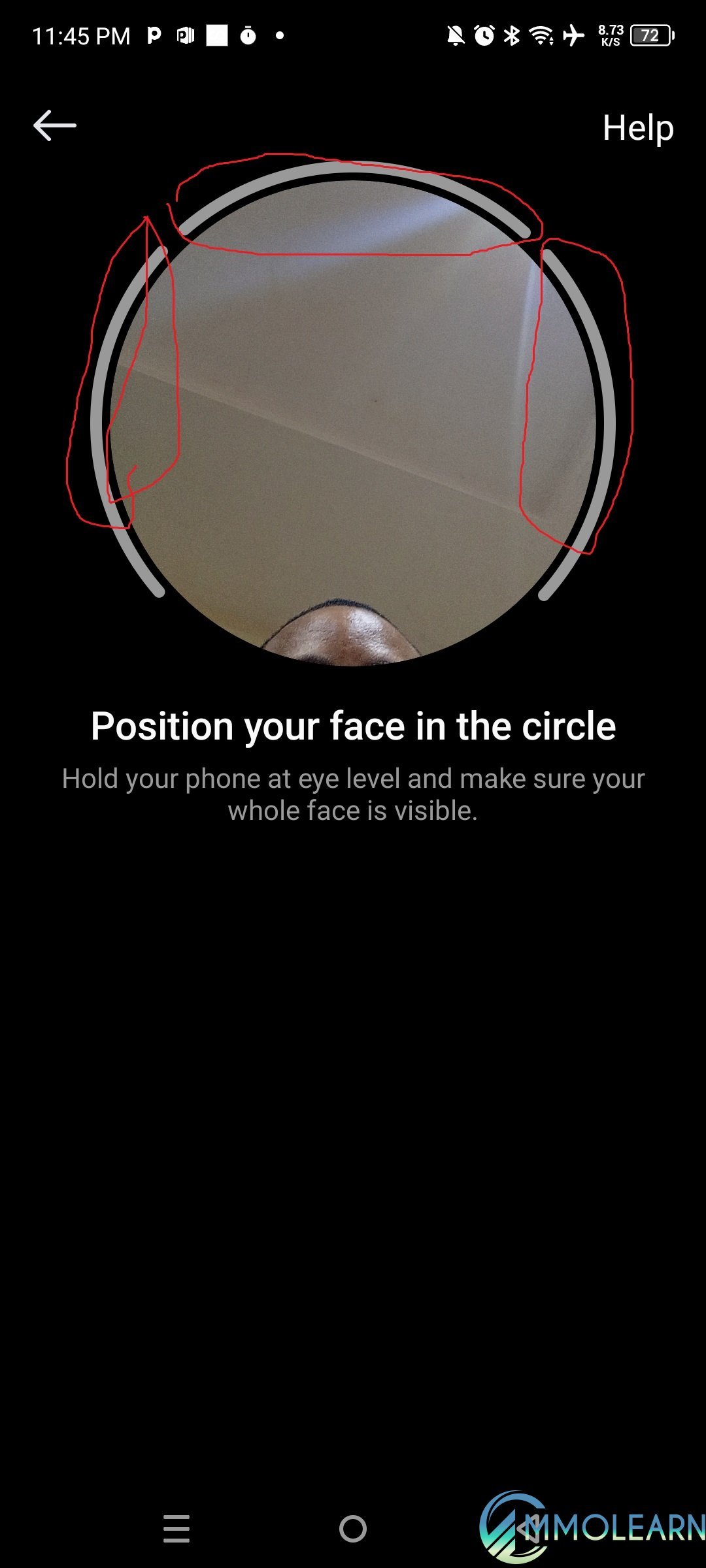
Instagram may ask for photos to make sure a real person owns the account. Follow the directions on the screen and take pictures from a few different positions. You can slightly turn your head or change how you hold your phone to help capture clear images. Keep your screen active during this step so you do not have to start over.
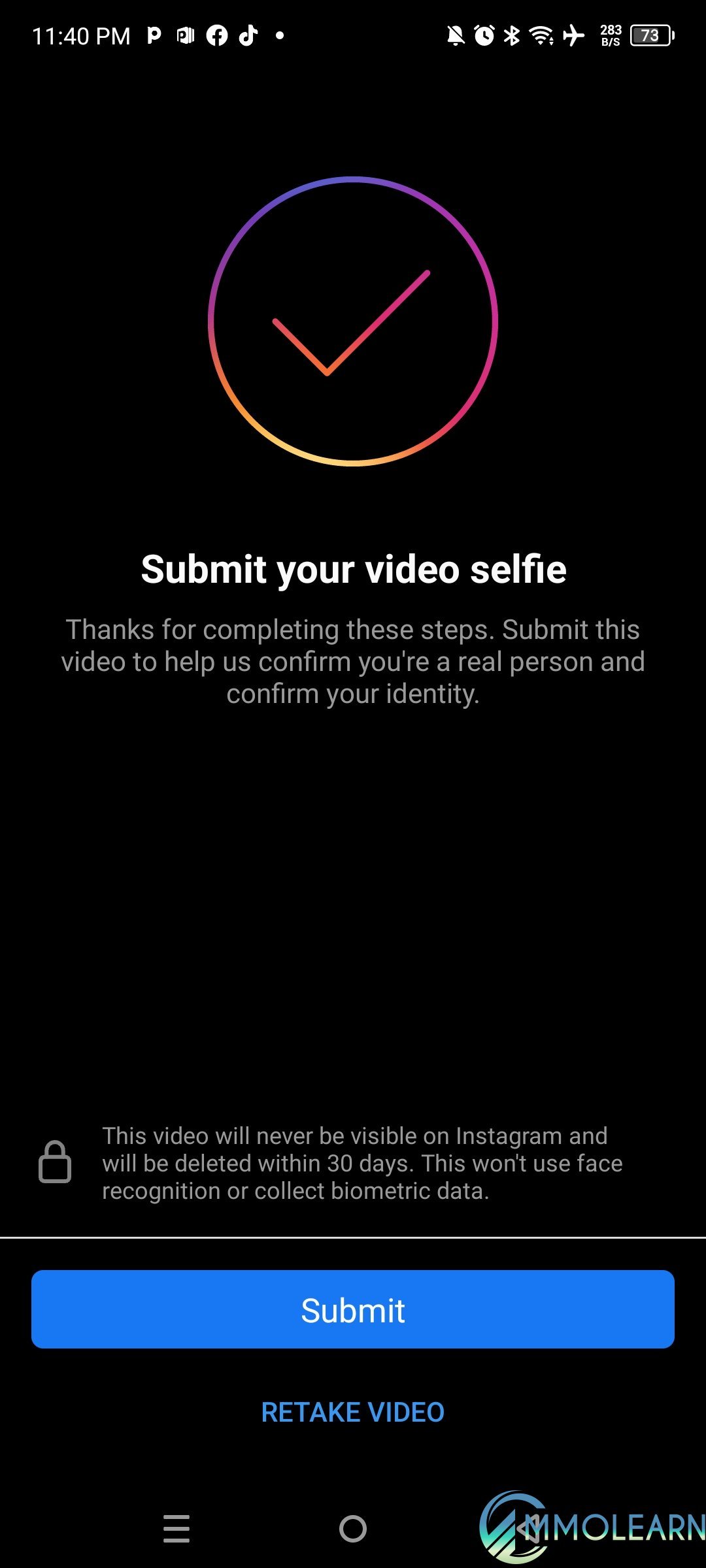
Step 5: Send Your Photo
Once you finish taking the picture, follow the prompts to upload and send it for review.
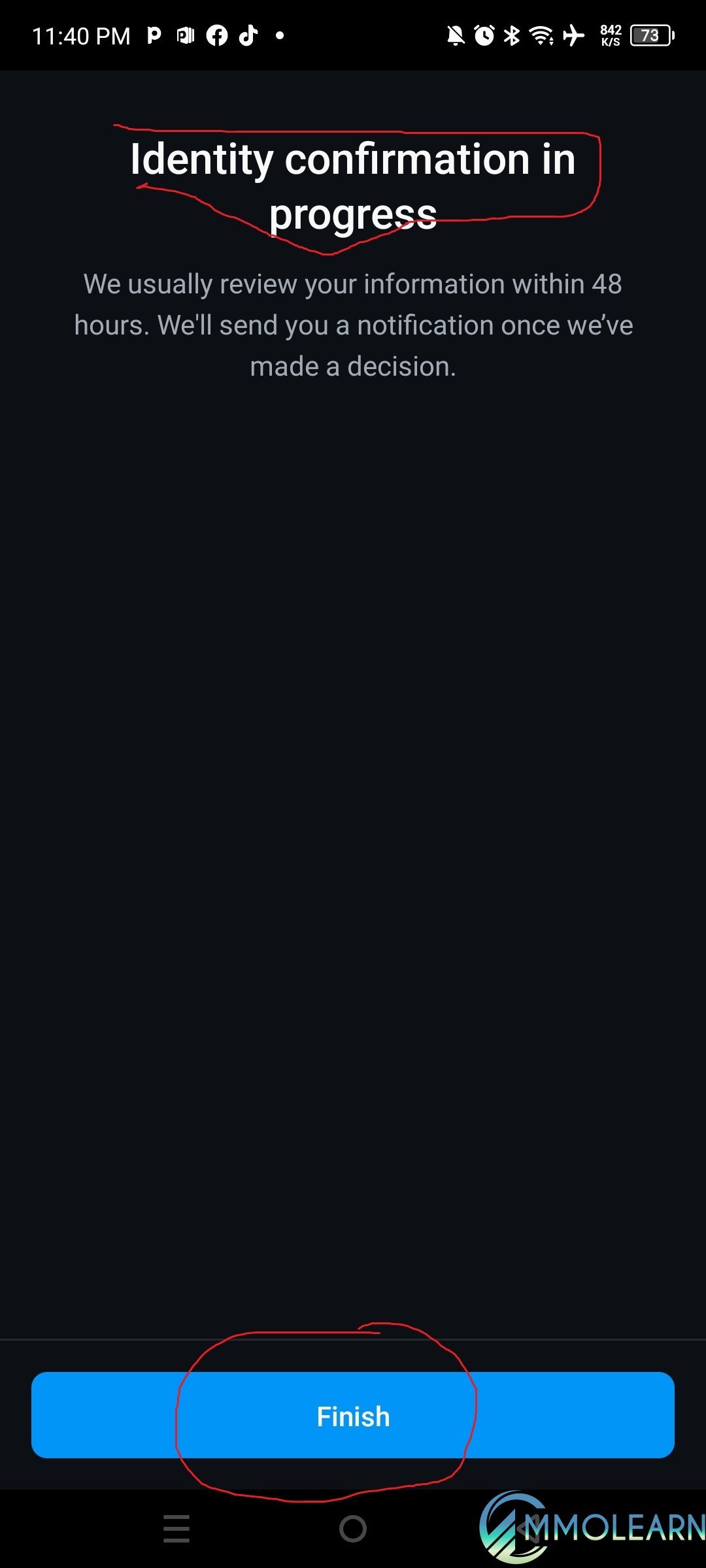
Step 6: Finish the Verification Process
Tap the "Finish" button to complete the account identity check and send everything for review.
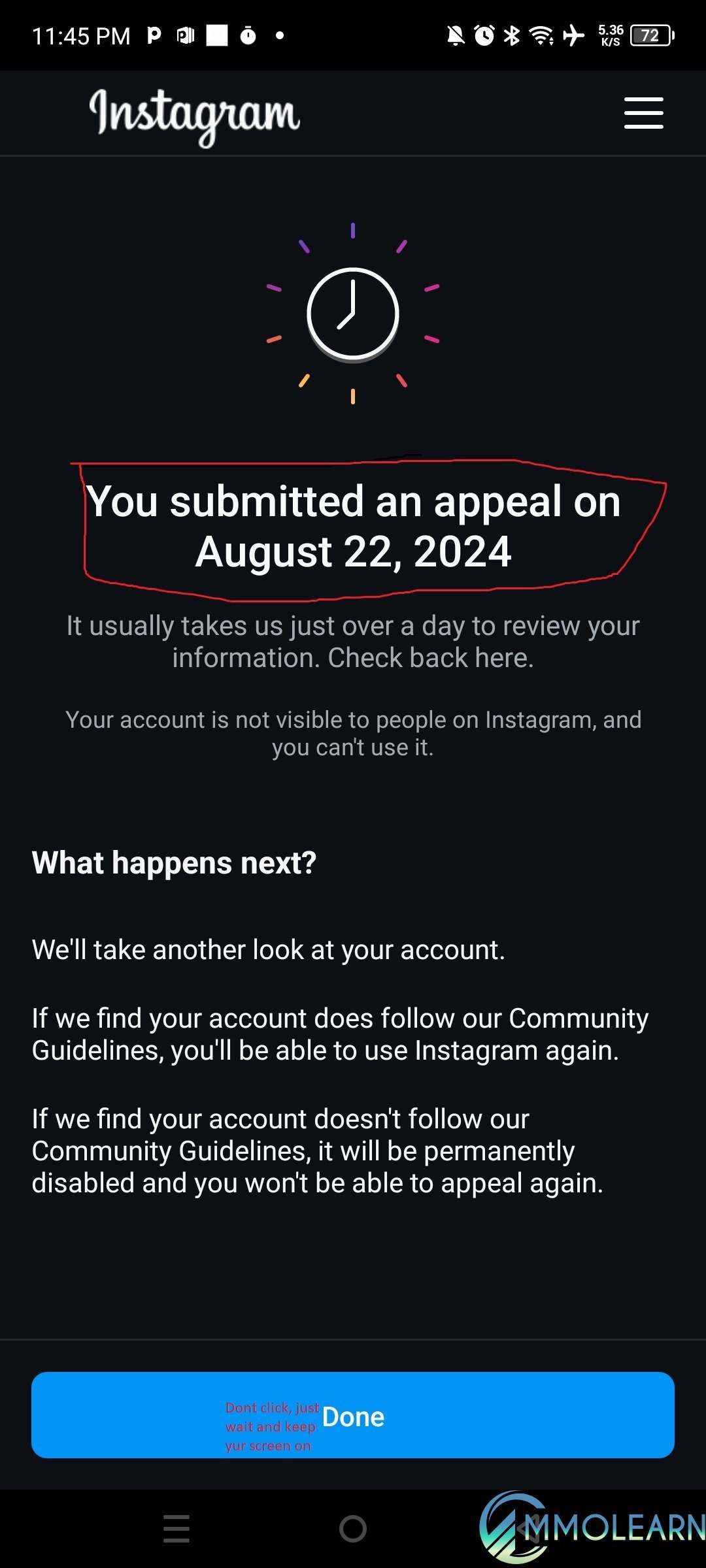
Step 7: Wait for a Reply
After you send your appeal, you should get a message saying it was received. Keep the app open and don’t let the screen turn off. If everything goes through, you will get a notice that your account is working again.
If you do these steps the right way, you may be able to get your account back pretty fast.

If you’re not sure about something, you can leave a question in the comments below.
What causes an Instagram account to get suspended?
Sometimes Instagram may limit or suspend an account if it thinks unusual tools are being used. This can happen when people connect outside apps, auto-posting tools, proxies, or other services that affect account activity.
How to try getting your account back:
Step 1: Install the newest Instagram update
Make sure your Instagram app is fully updated. Older versions may not show all the recovery options correctly.
Step 2: Select "Submit Appeal"
Press the appeal option on the screen and follow the instructions to send your request for review.
Step 3: Verify Your Email
Type in your email address and confirm it. In many cases, this can work even if the email is different from the one originally connected to the account.
Step 4: Verify Your Mobile Number
Choose your region, enter your phone number, and complete the confirmation. This process is much like the email check.
Step 5: Complete a Face Check
Instagram may ask for photos to make sure a real person owns the account. Follow the directions on the screen and take pictures from a few different positions. You can slightly turn your head or change how you hold your phone to help capture clear images. Keep your screen active during this step so you do not have to start over.
Step 5: Send Your Photo
Once you finish taking the picture, follow the prompts to upload and send it for review.
Step 6: Finish the Verification Process
Tap the "Finish" button to complete the account identity check and send everything for review.
Step 7: Wait for a Reply
After you send your appeal, you should get a message saying it was received. Keep the app open and don’t let the screen turn off. If everything goes through, you will get a notice that your account is working again.
If you do these steps the right way, you may be able to get your account back pretty fast.
If you’re not sure about something, you can leave a question in the comments below.